
Loading...
Loading...
Loading...
Loading...
Loading...
Loading...
Loading...
Loading...
Loading...
Loading...
Loading...
Loading...
Loading...
Loading...
Loading...
Loading...
Loading...
Loading...
Loading...
Loading...
Loading...
Loading...
Loading...
Loading...
Loading...
Loading...
Loading...
Loading...
Loading...
Loading...
Loading...
Loading...
Loading...
Loading...
Loading...
Loading...
Loading...
Loading...
Loading...
Loading...
Loading...
Loading...
Loading...
Loading...
Loading...
Loading...
Loading...
Loading...
Loading...
Loading...
Loading...
Loading...
Loading...
Loading...
Loading...
Loading...
Loading...
Loading...
Loading...
Loading...
Loading...
When a buyer cancels a request for quote (RFQ) event, you'll receive an email update.
The email subject will be:
((Buyer company name)) Request for Quote Cancelled #------ example: ((AM Productions) Request for Quote Cancelled #811065
The email includes:
Buyer company name
Event title
Link to message buyer
Event details (canceled date, supplier name, event ID, shipping address, preferred delivery date)
As events move through Fairmarkit, you'll receive emails to update you on edits, responses, messages, changed close dates, awarding, and other event activities.
For each user type, there is a summary of the available email notifications from Fairmarkit
Throughout Fairmarkit, you can add file attachments to your events and messages and view and download attachments added by suppliers or other buyers working on the event. Attachments allow you to add files, such as a scope of work to give context on an event or a specification or design document to further define a line item.
You can add attachments at both the event and line level. In addition, you can send attachments using Messaging and Supplier Clarifications.
Fairmarkit Business Classifications may be provided by your organization during import and/or sync with the Fairmarkit system, or may be set by a non-registered supplier via their registration. Classifications can be seen and searched when you select suppliers to invite them to your events. If you have purchased a Supplier.io subscription independently or through Fairmarkit, the data from SIO will also be synced here.
Disadvantaged Business Enterprise (DBE)
Local Business Enterprise (LBE)
Minority Business Enterprise (MBE)
Historically Black Colleges and Universities (HBCU)
Small Disadvantaged Business (SDB)
8A
Small Business Certification
Small Business Enterprise (SBE)
Veteran Business Enterprise (VET)
Service Disabled Veteran Owned Business (SDVET)
Service Disabled Veteran Business Enterprise (SDVBE)
Woman Owned Business Enterprise (WBE)
Women Owned Small Business (WOSB)
Economically Disadvantaged Women Owned Small Business (EDWOSB)
Disability Owned Business Enterprise (DOBE)
LGBT Business Enterprise (LGBTBE)
Alaskan Native
GSA
ISA
IS0-9001
Fairtrade
FSC
MSC
B-Corp
Certified Aboriginal Business (CAB)
You got a new response from a supplier
The email includes:
Event details (close date and time, event ID, shipping method, event title)
Response date
Supplier name
Line item response details (description, manufacturer, quantity, price)
Link to review full response
The email includes:
Buyer company name
Event details (withdraw date, supplier name, event ID, shipping method)
Event title

The email includes:
Buyer company name
Event details (Buyer name, close date and time, supplier name, event ID, shipping method, event title)

Fairmarkit is the intelligent sourcing platform that empowers organizations to more efficiently purchase the goods and services they need. By equipping procurement and supply-chain teams with automation and data, Fairmarkit promotes competitive bidding while reducing manual work within existing processes.
The email subject will be:
Your Request - (Event title) - has closed(no quotations) example: Your Request - Camera SD memory cards - has been closed(no quotations)
The email includes:
Event details (Close date and time, event ID, shipping method)
Event title
Link to event

((Buyer company name)) Request for Bid - Close Date Extended (Requisition #------) example: (AM Productions) Request for Bid - Close Date Extended (Requisition #847564)
The email includes:
Buyer company name
Event details (Original close date and time, new close date and time, supplier name, event ID, shipping address, shipping method)
Summary of line items (Description, Manufacturer, Quantity)
Link to event
Link to decline the event

(Buyer company name) Procurement - Quote Closing Soon example: AM Productions Procurement - Quote Closing Soon)
The email includes:
Buyer company name
Event details (Close date and time, event ID, shipping method, shipping address, preferred delivery date)
Summary of line items (Description, Manufacturer, Quantity)
Link to respond
Link to message buyer
Link to decline the event

When working on an event, the Files section allows you to attach files, such as a scope of work, to provide further context on the event.
When adding line items to your events, click the Show Additional Info button to display additional fields, including the Attachments field. This allows you to add up 5 file attachments, such as a specification or design document, to further define a line item
When messaging with suppliers using Messaging and , you can share additional file attachments.
When attaching files, keep the following in mind:
File size: Each attachment can be up to 100MB.
File names: File names can be up to 255 characters.
File types: Unless noted, any type of file can be added.
Line item attachments: For line items, you can attach up to 5 files.
When reviewing supplier responses, a download button will display with the number of available attached files. Click the button to download the files.
Alternatively, if you want to download details about the event, the supplier responses, and all file attachments, select Actions > Download Details.
While messaging with suppliers, you can download and view attachments directly in Messaging.
The email subject will be:
Weekly activity report
The email includes:
Your company name
This week's vs. last week's activity (total number of request for quote invitations/percent change from previous week, responses submitted/percent change from previous week)
Invitations and response status (by buyer) (response status, date, event ID (linked to event), event title)
Year-to-Date revenue awarded via Fairmarkit


When you have events closing soon (within two day), you will receive a reminder with a list of events and link to view more details.
The email subject will be:
Quotes Closing Soon
The email includes:
List of events (event title, close date and time, link to event)
Link to Events list
The email subject will be:
(Company name) Procurement - Quote Closing Soon example: Am Productions Procurement - Quote Closing Soon
This email includes:
Event details (close date and time, event ID, shipping address, Preferred delivery date)
Link to event
When a buyer awards your response to a request for quote (RFQ) event, you will receive an email update.
The email subject will be:
((Buyer company name)) Congratulations! You have been awarded request #------ example: (AM Productions) Congratulations! You have been awarded request #352911
The email includes:
Buyer company name
Event details (close date and time, supplier name, event ID, shipping address, shipping method)
Event title
If a buyer split awards line items on an event to two different responses, you'll receive a similar update with an extra disclaimer about split awarding.
When your auction closes, you will receive an update if your auction received responses (bids).
The email subject will be:
Auction was successful: (Event title) ((ID #------)) example: Auction was successful: Camera memory cards (ID #958393)
The email includes:
Close date and time
Event ID
Winning supplier name
Winning bid amount
When a buyer invites you to a English auction event, you'll receive an email with an event and line item summary and a link to respond.
The email subject will be:
Auction invitation: (event title) (EA) (ID #------) example: Auction invitation: Camera memory cards (EA) (ID #974617)
The email includes:
Buyer company name
Start date and time
Event ID
Event title
You will receive an email with a list of the request for quote events that have been created and assigned to you within the last 24 hours.
The email subject will be:
New requests in your Fairmarkit account
The email includes:
A list of request for quote events (event ID, close date, event title)
Link to Events list
When a buyer invites you to a request for quote event, you'll receive an email with an event and line item summary and a link to respond.
The email subject will be:
(Buyer company name) - Request for Quote #------ example: AM Productions - Request for Quote #820214
The email includes:
Event title
Summary of line items (Description, Manufacturer, Manufacturer part #, Internal part #, Quantity)
Any notes from the buyer
Link to respond
When a buyer adds a clarification to an event, you will receive an update with the information.
The email subject will be:
New clarifications for RFQ
The email includes:
Buyer company name
Event details (close date and time, shipping address, shipping method, event ID)
Event title
Clarification
When there are multiple request for quote (RFQ) events closing within two days, you will receive a reminder.
The email subject will be:
Quotes Closing Soon
The email includes:
List of events (event title, customer, close date and time, link to respond, link to decline)
Link to Supplier portal
If you have not sent shipping tracking information to the buyer two days after an event closes, you will receive an email reminder to add the information.
The email subject will be:
Let (Buyer company name) know when their shipment will arrive example: Let AM Productions know when their shipment will arrive
The email includes:
Buyer company name
Event details (close date and time, buyer company name, event ID, shipping method)
Event title
Line item details (Description, manufacturer, quantity, unit price, extended)
Link to event


Link to respond
Link to send a message to the buyer
Link to decline the event


Link to decline the event
Event details (close date and time, event ID, shipping address, preferred delivery date)

((Buyer company name)) Request for Quote Reopened #------ example: (AM Productions) Request for Quote Reopened #847564
The email includes:
Buyer company name
Event title
Close date and time
Summary of line items (Description, Manufacturer, Manufacturer part #, Internal part #, Quantity)
Link to respond
Link to message buyer
Link to decline the event
Event details (Original close date and time, new close date and time, supplier name, event ID, shipping address)

See how current prices measure up against past ones.
Calculate savings on your events. (see: Savings)
Identify outliers. (see: Outliers)
The Benchmark value is stored in the event currency and must be a numeric value with up to two decimal places (e.g., $99.99).
By default, if you update the event currency, the Benchmark price won't automatically update. You'll need to manually adjust it.
However, if your company has enabled automatic updates, the Benchmark will be converted whenever you change the event currency on request for quote and auction events. You can review and edit the new value if needed.
See: Multicurrency and Configurations
The benchmark can be set for a line item in the following ways:
You can manually enter a benchmark for each line item on an event.
Benchmarks may be automatically imported from your purchasing application and can be determined based on the last price paid, the average price paid over a certain time period, or the requisition or budget amount.
If the option is enabled, your historical data (awarded events and uploaded purchase order line item) can be automatically searched for matching items. If a match is found, the Benchmark value is added.
See
You can add or edit a Benchmark while the event is in Draft, Opened, or Closed status.

The email subject will be:
Update (Buyer company name) Procurement - Request for Bid for Requisition #------ example: Update AM Productions Procurement - Request for Bid for Requisition #820214
The email includes:
Buyer company name
Event details (close date and time, event ID, shipping method, shipping address, preferred delivery date)
Event title
Link to event

An invitation with an event and line item summary is sent when you're invited to a request for quote event.
An update is sent when a Supplier clarification is added to an event.
A notification is sent when new details or attachments are added to an opened event.
A notification is sent when the event Close date is updated.
A reminder is sent two days before the event closes.
A reminder is sent when you have multiple events closing within two days.
An invitation with an event and line item summary is sent when you're invited to a Dutch auction event.
An invitation with an event and line item summary is sent when you're invited to a Dutch auction event.
An invitation with an event and line item summary is sent when you're invited to a Japanese auction event.
A reminder is sent ten minutes before an auction event starts.
An invitation with an event and line item summary is sent when you're invited to a request for proposal or request for information event.
A notification is sent when new details or attachments are added to an opened event.
A notification is sent when the event Close date is updated.
A reminder is sent two days before the event closes.
An update with an event summary and new closing date is sent when an event is reopened.
An update is sent when an event is canceled.
The email subject will be:
Your Request - (Event title) - has closed example: Your Request - Camera memory cards - has closed
The email includes:
Event details (Close date, event ID, shipping method)
Number of supplier responses
If responses beat your benchmark price (when defined for the event)
Supplier with the overall lowest response
Breakdown of the lowest responses to your line items (Description, Manufacturer, Quantity, Price)
Link to event


For each line you add to an event, you will need to enter a description with details about the goods or services you're requesting.
Your description, paired with line details like Manufacturer, Manufacturer Part Number, and Quantity, provides suppliers with the necessary information to respond to your event. In addition, your description helps Fairmarkit to suggest relevant suppliers to invite to your event.
See:
Enter up to 4,000 characters to describe the requested goods or services.
For goods, consider including:
Specific details about the product (e.g., "M2 Pro 13 MacBook")
Manufacturer or brand name (include in Manufacturer field also)
Model or version
Unique features or specifications (e.g., "8GB RAM, 256 GB SSD")
For services, consider including:
Location (e.g., "Someone local to the Boston area is preferred")
Timeline (e.g., "2 days" or "September 1 - 5, 2023")
Start and end dates (available under Additional Information)
Any specific milestones or deadlines
Describe what you need in clear and simple terms. For the best results, you want Fairmarkit and suppliers to understand exactly what you need.
While some abbreviations may be widely understood in your industry, it's best to spell out technical terms or provide a brief explanation to reduce the risk of misunderstanding.
Provide details of what you need to purchase using the guidance in the previous section. Specifically, complete the Manufacturer and Manufacturer Part Number fields when appropriate.
For flexible item requests, consider using Group Item lines to add equivalent substitutes for the suppliers to choose from.
Between your purchase order history and previous events, be consistent in your descriptions. This will help to improve your supplier recommendations.
The following provides a summary of the available email notifications for request for quote (RFQ) events from Fairmarkit. Click the email name to view a more detailed description and screen shots of sample emails.
Not receiving emails? Please reach out to [email protected] to verify your point of contact email address.
An invitation with an event and line item summary is sent when you're invited to a request for quote event.
An update is sent when a Supplier clarification is added to an event.
A notification is sent when new details or attachments are added to an opened event.
A reminder is sent two days before the event closes.
You'll receive a reminder two days before a request for proposal (RFP) or request for information (RFI) event closes.
The email subject will be:
(Buyer company name) Procurement - Quote Closing Soon example: AM Productions Procurement - Quote Closing Soon)
The email includes:
Buyer company name
Event details (Close date and time, event ID)
Link to respond
Link to message buyer
When a buyer updates the close date on a request for proposal (RFP) or request for information (RFI) event, you'll receive an email notification with the new date.
The email subject will be:
((Buyer company name)) Request for Proposal - Close Date extended (Requisition #------) example: (AM Productions) Request for Proposal - Close Date extended (Requisition #136970)
The email includes:
Buyer company name
Event details (Original close date and time, new close date and time, supplier name, proposal ID, event ID, event title)
Link to event
Link to decline the event
The following provides a summary of the available email notifications for request for proposal (RFP) and request for information (RFI) events from Fairmarkit. Click the email name to view a more detailed description and screen shots of sample emails.
Not receiving emails? Please reach out to to verify your point of contact email address.
An update with an event summary and new closing date is sent when an event is reopened.
An update is sent when an event is canceled.
An update is sent when an event is withdrawn.
An update is sent when your response is awarded.
An update is sent when your response is not awarded.
A reminder is sent when you've won an event and haven't provided shipping information within 2 days.
An update is sent when an event is withdrawn.
An update is sent when your response is awarded.
A notification is sent when the event Close date is updated.
A reminder is sent two days before the event closes.
A reminder is sent when you have multiple events closing within two days.
An update with an event summary and new closing date is sent when an event is reopened.
An update is sent when an event is canceled.
An update is sent when an event is withdrawn.
An update is sent when your response is awarded.
An update is sent when your response is not awarded.
A reminder is sent when you've won an event and haven't provided shipping information within 2 days.
The email includes:
Event details (Buyer name, close date and time, event ID, event title, supplier name)

Fairmarkit can automatically attempt to detect and flag outliers, or supplier responses that seem incorrect or out of normal range. Once flagged, the values are suppressed in your reporting. In some cases, outliers may still need to be manually reported, so continue to review any values that do not look correct.
Supplier responses are reviewed and flagged for outliers when an event moves to Closed status. They are reviewed again when an event is reopened and closed.
Opened events: Because outliers are not flagged until an event is closed, outlier values could appear on any high savings reports when the event is still opened.
Outliers are calculated at the quotation level (individual line items are not reviewed and flagged) when the event is closed. Any supplier response that exceeds 90% savings is flagged as an outlier.
If a benchmark price is included for all items on the event, the supplier responses are compared the benchmark price, and any supplier response that exceeds 90% savings is flagged as an outlier.
If the event does not include benchmark prices, the average of all of the supplier responses is calculated. Offline bids are not included in the average. Then, each supplier response is compared to the average value, and any response that exceeds 90% savings is flagged as an outlier.
Averages: There is no restriction on the number of responses required or reviewed. Outlier responses are not considered in this average.
Only supplier responses that exceeds 90% savings are flagged. Erroneously high supplier responses are not flagged. For example if one response is 4 times higher than the average of the responses or the benchmark price, it will not be automatically flagged as an outlier and should still be reported manually.
No, if you update the benchmark prices after the outliers are calculated, they will not be recalculated.
Additionally, this process only flags supplier responses and will not update if the benchmark price is incorrect. Incorrect benchmark values could cause a supplier response to be incorrectly flagged (e.g., the response is a lot lower than the benchmark price). In this case, correct the benchmark price, where able, and report the records to [email protected] so the incorrect outlier flag can be removed.
No, offline bids are not considered in the calculation and will not be flagged as an outlier. Additionally, offline bids are not included if an average of responses is needed to calculate outliers.
Additional requirements (e.g., color preference, accessories)
Professional service:
Service description (e.g., "Professional videographer for procurement and sourcing product promotional video")
Skills, certifications, qualifications, or experience (e.g., scripting, filming, editing)
Event:
Description of the event (e.g., "2-day, 150-person conference in Atlanta")
Specific requirements (e.g., "A/V and catering services needed")
Accommodation needs (e.g., "Hotel accommodation options required")
Contract project :
Project description (e.g., "ServiceNow software integration project")
Scope of work (e.g., design, coding, and QA)
Contract duration (e.g., 3-month contract)
Catering for an event.
Catering service for a full-day company-wide training event in Boston on September 30, 2023. Please take into account dietary restrictions and provide a quote accordingly.
Parker;HSF;1/4"-18;Male NPTF;1/4"-18;Female NPTF
Parker Hydraulic Swivel Fitting 1/4"-18, Male National Pipe Taper Fuel (NPTF), 1/4"-18, Female National Pipe Taper Fuel (NPTF), Carbon Steel
Computer- 16”Mac/512GB Storage
Apple Macbook Pro 16.0-inch (diagonal), LED-backlit display with IPS, 2.6GHz 6-core Intel Core i7, 512GB SSD, 16GB RAM

The email subject will be:
Update (Buyer company name) Procurement - Request for Bid for Requisition #------ example: Update AM Productions Procurement - Request for Bid for Requisition #136970
The email includes:
Buyer company name
Event details (close date and time, event ID)
Event title
Change details (field, previous value, updated value)
Link to event

A reminder is sent two days before the event closes.
An update with an event summary and new closing date is sent when an event is reopened.
An update is sent when an event is canceled.
An update is sent when an event is withdrawn.
An update is sent when your response is awarded.
An invitation with an event and line item summary is sent when you're invited to a request for proposal or request for information event.
A notification is sent when new details or attachments are added to an opened event.
A notification is sent when the event Close date is updated.
((Buyer company name)) - Request Reopened (Requisition #------) example: (AM Productions) - Request Reopened (Requisition #100191)
The email includes:
Buyer company name
Event details (Original close date and time, new close date and time, supplier name, event ID, event title)
Event title
Close date and time
Link to respond
Link to decline the event

((Buyer company name)) Congratulations! You have been awarded request #------ example: (AM Productions) Congratulations! You have been awarded request #73715
The email includes:
Buyer company name
Event details (close date and time, supplier name, proposal ID, event ID, event title)
Event title


When a buyer invites you to a Japanese auction event, you'll receive an email with an event and line item summary and a link to respond.
The email subject will be:
Auction invitation: (event title) (JA) (ID #------) example: Auction invitation: Camera memory cards (JA) (ID #957127)
The email includes:
Buyer company name
Start date and time
Event ID
Event title
When a buyer cancels a request for proposal (RFP) or request for information (RFI) event, you'll receive an email update.
The email subject will be:
((Buyer company name)) Request canceled (Request #------) example: (AM Productions) Request canceled (Request #54691)
The email includes:
Buyer company name
Event details (canceled date, supplier name, proposal ID, event ID, event title)
Event title
When a buyer withdraws a request for proposal (RFP) or request for information (RFI) event, you'll receive an email update.
The email subject will be:
((Buyer company name)) Request withdrawn (Request #------) example: (AM Productions) Request withdrawn (Request #149575)
The email includes:
Buyer company name
Event details (withdraw date, supplier name, event ID, shipping method)
Event title
Fairmarkit supports multicurrency. This means that you can work on events (e.g., as a buyer submitting an event or a supplier submitting a response) and you will see all currency values in your selected currency.
With multicurrency, you can always see event values in your selected currency. The currency is set at the event level and must be consistent across an event to reduce potential confusion.
This depends on your company settings. By default, your Benchmark value is not converted and you'll need to manually update it.
If you've turned on the Convert Benchmark when currency is updated configuration, the Benchmark price is automatically recalculated. You'll be able to review and edit the updated value as needed.
No, you cannot bundle events with different currencies. You will need to update all events to the same currency.
You can select a currency when you're working on an event. Additionally, your organization's Admin can set preferred and default currencies at both the organization and user level.
Buyer's organization: An Admin can set the preferred and default organizational currencies for buyers. See
Buyer user: An Admin can set the preferred and default currencies for a user. See .
Suppliers: Events will default to the requested currency for the event, but you can change it to your desired currency. Buyers will see the quotes value in their requested currency; it is converted based on the end of date exchange rate the day before the event was opened. Buyers can see the currency you used in your response next to the Supplier Quote Number.
Currency rates are updated using .
Currency rates are updated hourly and with the end of day currency rate each night. For consistency across an event, the exchange rate for the day before the event was opened is used on all conversions for an event.
When a buyer invites you to a request for proposal (RFP) or request for information (RFI) event, you'll receive an email with an event and line item summary and a link to respond.
The email subject will be:
New (Buyer company name) (RFP/RFI) Posted - Procurement of (Event title) example: New AM Productions RFP Posted - Procurement of Canon Camera Equipment: New Lenses and Memory Cards
The email includes:
Event title
Link to respond
In Fairmarkit, you will may see suppliers categories as registered, non-registered, or public.
Registers suppliers are suppliers that have been approved by your organization.
For information about registering your suppliers, see .
Non-registered suppliers are suppliers that were either recommended by Fairmarkit or manually entered by a user in your organization.
Public suppliers are suppliers that have responded to your event from a marketplace, (e.g., ). From the marketplaces, all suppliers are free to submit responses to an event.
As you manage your events in Fairmarkit, they will move through various statuses, each with specific actions available to you. Fairmarkit indicates an event's status through the use of colors and labels.
When you create an event (generated from your purchasing application or manually created), it starts in Draft status. From here, you can edit the event details and then submit it to suppliers. Events in Draft status are still under your control and not visible to suppliers.
Once you send your event to suppliers, it transitions to Opened status. You set the open period with the Close Date and Close Time fields, and the event automatically closes; however, you can manually close the event if needed. While the event is Opened, you can edit some fields, invite additional suppliers, update notes, message suppliers, and review responses.
Typically an event automatically moves to Closed status based on the Close Date and Close Time fields, but you can also manually close an event. When an event moves to Closed status, suppliers can no longer submit responses, and you can review all supplier submissions and proceed with awarding the event.
After you award an event, it moves to Awarded status. If you award individual line items, it moves to a Partially Awarded status. Once awarded, you can update your purchasing application accordingly.
If you no longer need an event, you can move it to Canceled status. This can be done from Opened, Closed, or Awarded statuses.
If a you no longer need a draft event, you can move the event to Archived status. Archived events are not tracked for Fairmarkit usage.
When your auction closes, you will receive an update if your auction did not receive any responses (bids).
The email subject will be:
Auction was unsuccessful: (Event title) ((ID #------)) example: Auction was unsuccessful: Camera memory cards (D (ID #956556)
The email includes:
Close date and time
Event ID
Link to event
A unit of measure (UOM) is the unit that a good or service can be packaged into for sale. For example, you could purchase a ream of paper, a coil of wire, or a square foot of flooring.
Additionally, you can also use UOMs on line items to request additional data about the goods or services, collect insights about the supplier, or ask questions related to the sourcing process.
Line items outline a good or service you need to purchase. For most line item, you'll need to add a description, UOM, and quantity. The UOM combined with the quantity describes how much of each item you want.
The UOM describes the unit of the item (e.g., a box
When sending events to suppliers, you can select if you want suppliers to sign a non-disclosure agreement (NDA) before reviewing the details of your event. With Fairmarkit, you can define a standard NDA for your organization. In addition, you can create custom, event-specific NDAs.
If you are assigned to the Admin role, you can define a standard NDA for your organization from the Administration screen. You can enter up to 50,000 characters and use standard HTML to format and create links in your text. .
When you select a preferred Shipping Type, you can also select a preferred Carrier. The available list of Carriers depends on the selected Shipping Type.
The email includes:
Buyer company name
Event close date and time
Event ID
Link to respond
Link to message buyer
Link to decline the event

Link to respond
Link to send a message to the buyer
Link to decline the event


Ground w/ Freight Pricing
UPS
Next Day
DHL
FedEx
UPS
Next Day - AM
DHL
FedEx
UPS
Ocean Freight
Disabled
Priority Mail
USPS
Priority Mail Express
USPS
Same Day
DHL
FedEx
UPS
Saturday
DHL
FedEx
UPS
Three Day
DHL
FedEx
UPS
Two Day
DHL
FedEx
UPS
Two Day - AM
DHL
FedEx
UPS
Courier
Disabled
Critical
DHL
FedEx
UPS
Freight
DHL
FedEx
UPS
Ground
DHL
FedEx
UPS
USPS
You can also add line items to learn more about the supplier and their offerings. This could include different types of questions, such as multiple choice, text, or yes/no. For these line items, a quantity isn't set and suppliers will respond with information or attachments. See How to pick a UOM for a line item.
To make it easier to send proposals in business-defined units of measure, suppliers can convert the line item UOM of value based UOMs to the measurement they use to sell their items.
For example, if you want to buy 1,000 pens, but the supplier sells them in packs of 20, the supplier can respond with their price for 20-packs of pens.
So it is easier for you to review, you will see their responses in the UOM you used when creating the event (e.g., the price per pen). Fairmarkit automatically does this calculation for you. Just hover over the indicator to see how it was calculated.
A set of common UOMs are available for each line item type. If a necessary UOM is not available, you can contact [email protected] and request it be added.

Yes, when working on request for information and request for proposal events, you can add a custom NDA to the header level of your event. This ensures that any event-specific or department-specific language is covered and agreed to by any suppliers participating in your event. You can also add a Custom NDA to your templates. You can either upload a PDF (one file, up to 100MB) or add your NDA in as plain text. For more information, seeCreate a request for proposal, or .
When a supplier receives an invitation to an event with an NDA, they must agree to it before they view the event details. When they agree, an agreement timestamp is added to the event.
Note: For event-specific NDAs, the agreement is only for the specific event and will not count as agreement to any future event-specific NDAs or the generic company NDA.
A response summary with a link to view details is sent when a supplier submits a new response to an event.
A reminder is sent two days before the event closes.
A summary, including event details and supplier responses, is sent when the event closes.
A summary including event details is sent when the event closes without responses.
An update if your auction received responses (bids).
An update if your auction did not receive any responses (bids).
A daily summary of new request for quote events created and assigned to you.


As your company joins Fairmarkit, we want to ensure a seamless transition for your existing supplier contacts, helping them understand the benefits of using Fairmarkit and how to onboard effectively. As part of their onboarding, your suppliers will be invited to comprehensive Fairmarkit training and will receive targeted emails at key stages of the onboarding process. This process is crucial for establishing effective communication and transitioning to Fairmarkit.
With our live Fairmarkit training, we equip your suppliers with the knowledge and skills to be successful in Fairmarkit. The introductory session covers key features, best practices, and tips to maximize their experience.
Customer champion: The live training is a webinar hosted through ZoomEvents for your suppliers. We will ask the customer’s champion to join the webinar to provide an overview of why you are partnering with Fairmarkit.
We've designed a series of customizable email templates to help support your suppliers. These emails provide a foundation for communicating with your suppliers, outlining key steps, and providing essential information throughout the onboarding journey. You can tailor these emails to better suit your company's specific needs and branding, ensuring that your suppliers receive clear and concise guidance during the transition to Fairmarkit.
For your emails:
Logos: We will include your company logo and the Fairmarkit logo in each email.
Customization: You can choose to customize the first email (Process overview).
Engagement statistics: We'll share engagement statistics for the emails with you.
We'll announce the new quoting process to your suppliers, requesting them to confirm or update their contact information to ensure smooth communication moving forward. You will align with your Engagement Manager on who will send the first communication and which email address will be used. Email template: view |
A warm welcome email will be sent from the Fairmarkit team, inviting your suppliers to sign up for a live webinar. This session will provide an overview of the platform, the new partnership, and a Q&A segment. Email template: view |
Webinar: The Fairmarkit and customer teams will co-hosted supplier webinar where we will invite the customer champion to provide an overview of the partnership.
We'll send a recording of the webinar to all suppliers, including those who attended, those who missed the session, and those who didn't register. This ensures that everyone has access to the information shared. Email template: view |
Get in touch with our Supplier team at .
Standard savings is calculated by comparing the lowest supplier response to the Benchmark value. The Benchmark value is the reference price that you provide when you create your event.
If there isn't a Benchmark value, the lowest response is compared to the average value of all supplier responses received. For multi-round events, this would be the average value of all supplier responses received in the first round of the event.
Many of the analytics reports also include calculations for awarded, identified, and missed savings. To review a list of common calculations used in Analytics, see Analytics calculations.


From an event or the Events list, click the Actions button to apply an action to an event. The available list of actions depends on the event's type and status and your company configuration in Fairmarkit.
With Internal Notes, you can enter notes about an event and share them with your team. These notes are for internal use only and will not be shared with suppliers. This is helpful for compliance purposes to track information shared outside of Fairmarkit, such as through a phone call or meeting.
See:
A UOM, or a unit of measure, is used with Quantity on line items to measure requested items or services accurately.
Additionally, you can also use UOMs on line items to request additional data about the goods or services, collect insights about the supplier, or ask questions related to the sourcing process. See
Need a new UOM? If a necessary UOM is not available, contact [email protected] to request it be added.
Excel Import: When importing data via Microsoft Excel on events, UOMs are case sensitive and should be all lowercase.
Available UOMs for items, item groups, and item questions:
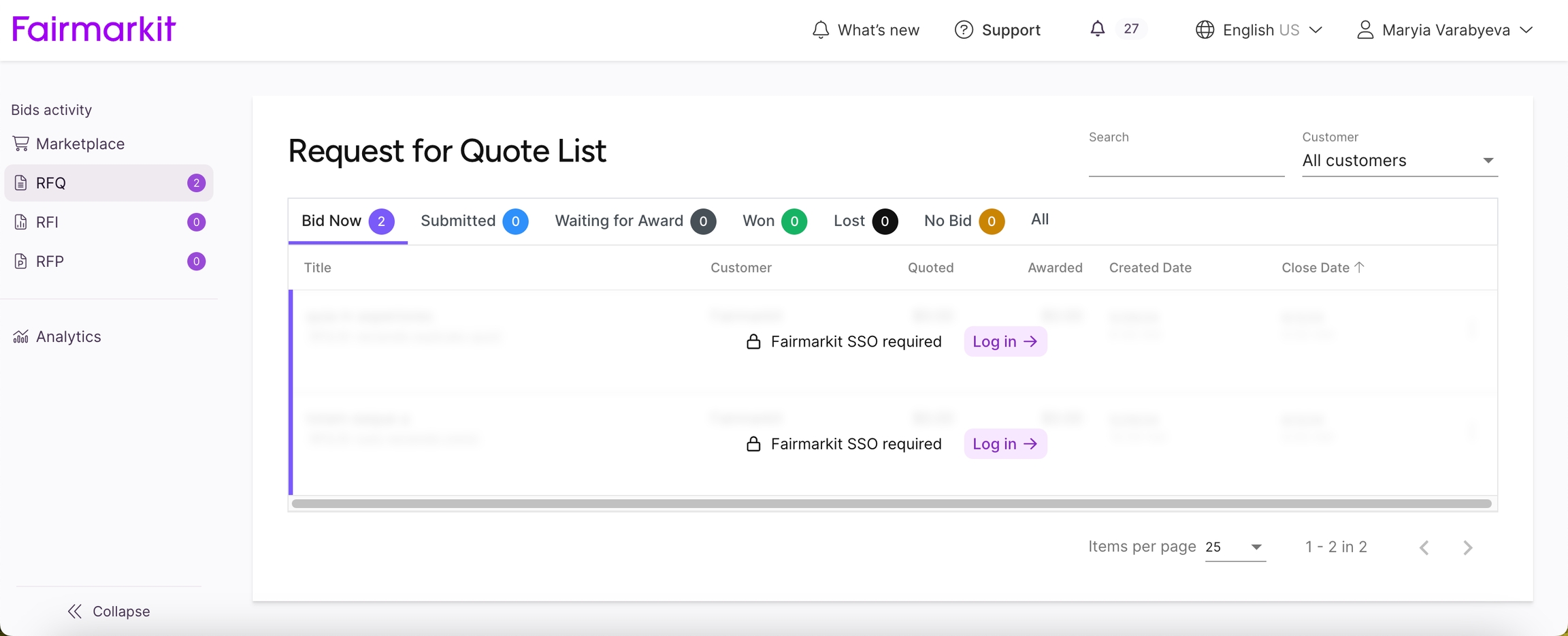
With the Require SSO option, you can require suppliers to log in via your company's SSO to view full details of a request for quote event. This added layer of security ensures that sensitive information remains protected until suppliers log in.
This is a company-level setting that will impact all of your request for quote events, requiring suppliers to log in to Fairmarkit to view and interact with your events.
For more information on this option, contact your Fairmarkit Customer Success Manager.
Before logging in, sensitive information on events requiring login will be blurred out, and suppliers will be prompted to log in.
The email includes:
Buyer company name
Start date and time
Event ID
Event title
Summary of line items (Description, Manufacturer, Manufacturer part #, Quantity)
Link to respond
Link to send a message to the buyer
Link to decline the event

Sometimes, you may receive pricing directly from a supplier outside of Fairmarkit. So you can accurately track your event and sourcing history, you can enter an offline quote. This allows you to track offline pricing against your other suppliers for visibility, transparency, and saving calculations. This option is available from the Details screen.
See:
When working on an event, you can add the original requester to the event so they can view the event in their events list, add internal notes, and participate in conservations with suppliers.
See:
For draft events you no longer need, you can move them to Archived status. Archived events are not common and are not tracked for Fairmarkit usage.
See:
If you have run the suggest bundles process, select this option to create the bundles.
See:
If you have opened an event and no longer need it or need to create a replacement event, you can cancel an event. Suppliers will receive an event cancellation notification, but a cancellation reason is not included.
See:
After opening an event, you can change the Close Date, Close Time, and Preferred Delivery Date to extend or shorten the event open period.
See:
When you added a requester to an event, you may need to change the requester or remove them from the event.
See:
If you frequently make similar or complex events, you may want to clone an existing event to save time. This option copies an existing event and saves it as a draft. Pricing received on the original request are not cloned and awards are not pushed back to your purchasing application.
See:
Typically, an event automatically closes on the specified Close date and Close time, but you can manually close an event.
See:
This option allows you to copy a direct link to the event.
This option allows you to create an request for proposal or request for information template based on an existing event.
See:
From the events list, you can review a screen with details of the event.
This option allows you download a Microsoft Excel spreadsheet with data from the event.
See:
This option allows you download a PDF of detailed information from the event. The information is downloaded as a zip file, containing a PDF summary of the event, and if suppliers have included attachments in their responses, a folder for each supplier with attachments.
See:
This option allows you to download a PDF with data from the event.
See:
For request for proposal or request for information events, you can download the Response QuickView, an AI-generated summary of supplier responses for your event, to PDF format. This is auto-generated and emailed to the event owner. Additionally, you can manually generate the Response QuickView from your event page. Contact your Fairmarkit Customer Success Manager to enable this feature.
See:
After sending an event to suppliers, you can edit fields that will not impact the suppliers' process.
See: .0
For request for proposal or request for information events, an AI-generated summary of supplier responses, known as the Response QuickView, can be automatically emailed to you once your event closes. Additionally, you can manually generate the Response QuickView from your event page. Once generated, the PDF is emailed to you, or you can return to the event and select Download summary to download a PDF version. Contact your Fairmarkit Customer Success Manager to enable this feature.
See:
If an event is part of the same initiative or project as other events, you can link the events with a project. Any combination of event types can be linked. This option is only available for Supervisor and Admin users.
See:
This option allows you to print data from the event.
See:
Sometimes, you may need to reassign an event from one buyer to another. If you have access to this option, you can use this option to reassign events quickly. Users in an Observer role cannot reassign events.
See:
If you have a closed event that you want to update, you can reopen the event.
See:
For an archived event, Restore moves the event back to Draft status.
See:
When working on an event, you can invite collaborators or evaluators (only available on request for proposal and request for information events) to help you build and review your event.
See: or
If two or more events have been bundled, you can unbundle the events, restoring the original events.
See:
If an event is part of the same initiative or project as other events, you can link the events with a project. Any combination of event types can be linked.
See:
This option allows you to view a history of actions taken on an event. The log can be filtered by action, searched, and downloaded to Excel.
See:
With Internal Notes, you can enter notes about an event and share them with your team. These notes are for internal use only and will not be shared with suppliers. This is helpful for compliance purposes to track information shared outside of Fairmarkit, such as through a phone call or meeting.
See:
When viewing a request for quote (RFQ) event on the details page, you can now select to view the original purchase requisition (PR) in your ERP/P2P purchasing application.
If you have an opened request for quote event and need to make major changes, such as adding line items, changing quantities, etc., you can withdraw the event within 2 days of opening it. Withdrawn events are moved back to Draft status and can be edited like a new event. When you withdraw an event, any supplier responses are removed and the suppliers are notified that you've withdrawn the event. After you've edited the event, you will need to open the event again. Once you withdraw an event, it cannot be undone.
See:
1/2 cubic yard
Assembly
Bag
Bale
Bar
Barrel
Block
Board foot
Bottle
Box
Bucket
Bundle
Cake
Can
Card
Cubic yard
Cup
Cylinder
Dozen
Drum
*Each
Foot
Gallon
Gram
Gross
Hank
Hectare
Hour
Hundred
Light
Liter
Lot
Lug
Lump Sum
Meter
Metric ton
Milliliter
Millimeter
Night
Ounce
Pack
Package
Packet
Pad
Rack
Ream
Reel
Roll
Sachet
Set
Sheet
Spool
Square foot
Square meter
Square yard
Suit
Tank
Thousand
Tin
Available UOMs for services, group services, service questions, and service components^:
^ For service components, you can only select Date, Date range, Text, or Yes/no.
+Only available for request for information and request for proposal events.
Analysis
Annotations lines
ASIN
Attachment
Audit
Campaign
Compliance
Contract
Date^
Date range^
Day
*Each
Event
Fte
Hour
Integration
Labels
Lump Sum
Metric ton
Minute
Month
multiple choice answers+
No response (no_response)
Number
Pages
Per thousand words
Percent
Production
Program
Project
Quarter
Second
Segments
Set
Site+
Sme
Text^
Training
Videos
Webinar
Week
Words
Year
Yes/no^ (yes_no)
Throughout Fairmarkit labels help you to quickly see information about an event. Labels display for events on lists and screens to give you additional information about an event.
Alternative
Displays when a supplier has suggested an alternative item.
assignee
For events assigned to other buyers, displays the assigned buyer's name.
Auto-awarded
Carton
Cartridge
Case
Centimeter
Coil
Container
Cube
Cubic foot
Cubic meter
Inch
Jar
Keg
Kilogram
Kiloliter
Kilometer
Kilowatt
Kit
Length
Pail
Pair
Pancake
Part
Pg
Piece
Pint
Pot
Pound
Punnet
Quart
Ton
Tonne
Tray
Tub
Tube
Unit
Unit F
Yard
Year
Displays if an event has been automatically awarded. If you hover over the label, you can view the date and time the event was
Awarded
Displays when the event has been awarded. For more information on event statuses, see Event status (Buyers)
Awarded at
Displays the date and time that the event was awarded.
Benchmark
Displays the benchmark value for the event.
Bundled
Displays if the event was created when two or more events were bundled. Hover over the label to view the original RFQ IDs of the bundled events. For more information on bundling, see and .
Can't auto-award
Displays if an event can't be This is usually because an event contains service lines, alternative items, or supplier ties.
Canceled
Displays if the event was canceled. If you hover, you can view the cancellation reason. For more information on event statuses, see Event status (Buyers)
Canceled at
Displays the date and time that the event was canceled.
Closed at
Displays the date and time that the event was closed.
Closes at
Displays the date and time that the event will be closed.
Created at
Displays the date and time that the event was created.
Draft
Displays if the event is in Draft status. For more information on event statuses, see Event status (Buyers)
Exchange rate calculated
Displays the date that the exchange rates was calculated. This is displayed when a supplier sends a response in a currency different than the event currency.
LBE
Displays if a supplier is a Local Business Enterprise (LBE). For more information on supplier diversity, see Business Classifications
Manual requisition
Displays when an event was manually created in Fairmarkit.
Opened
Displays when the event is opened. For more information on event statuses, see Event status (Buyers)
Opened at
Displays the date and time that the event was opened.
Outlier
Displays if the event or a response is an outlier.
Partial
Displays when a supplier sends a partial response to an event.
Partially awarded
Displays when an event has been partially awarded.
Preferred delivery date
Displays the preferred delivery date set for the event.
Questions due date
Displays the date and time that responses to request for proposal or request for information questions are due.
Rejected
Displays if the event was rejected. For more information on event statuses, see Event status (Buyers)
Requested by
Displays the name of the user who requested the event. The user would have needed to request the event in Fairmarkit or have been added as a requester manually.
Requires review
Displays when an event requires review.
Reverse Auction
Displays if the event is a reverse auction.
Reverse auction started
Displays next to the event title on the events list when a reverse auction is open. If you hover over the label, you can view the date and time the event was opened.
Scheduled
Displays when an event is scheduled to be opened.
Scheduled opened at
Displays the date and time that the event is scheduled to open.
tag
Displays any internal tags added to the event. With internal tags, the label will include the tag icon.
team
Displays the associated with the event.
WOBE
Displays if a supplier is a Woman Owned Business Enterprise (WOBE). For more information on supplier diversity, see Business Classifications
WOSE
Displays if a supplier is a Women Owned Small Business (WOSE). For more information on supplier diversity, see Business Classifications
The following provides a summary of the available email notifications for auction events from Fairmarkit. Click the email name to view a more detailed description and screen shots of sample emails.
Not receiving emails? Please reach out to [email protected] to verify your point of contact email address.
An invitation with an event and line item summary is sent when you're invited to a Dutch auction event.
An invitation with an event and line item summary is sent when you're invited to a Dutch auction event.
An invitation with an event and line item summary is sent when you're invited to a Japanese auction event.
A reminder is sent ten minutes before an auction event starts.
Configurations let you tailor Fairmarkit to suit your organization's requirements. This includes defining company defaults to setting supplier management options and enabling extra event options.
Need to update? Some of the configurations can be updated on the and screens and are noted for each. However, for the majority of the configurations, you will need to contact your Fairmarkit Customer Success Manager.
A unit of measure (UOM) is added to a line item and commonly paired with a quantity to define and price the goods or services being sourced. However, you can also use UOMs on line items to request additional data about the goods or services, collect insights about the supplier, or ask questions related to the sourcing process.
The following outlines some of the different types of UOMs and how and when to use them on an event. It also provides some practical examples to help you understand their possible usage.
Each is used for pricing and is the default UOM for each line item. This asks for a price for each good or service and then multiplies it by the quantity. This option works best for sourcing events where items are typically sold or purchased individually.
For example, if you're ordering laptops, you can request the price per laptop (e.g., each).
Sets the default time zone for all users in your organization. A user's time zone is used when sending email reminders. This configuration can be set for your company and individual users.
You can also set this configuration on both the and screens.
Sets the default currency used when creating manual events. This can be any ISO currency code. Typically, you'd want to set this to the currency that will be used for most events for your company. This configuration can be set for your company and individual users.
You can also set this configuration on both the and screens.
Set a list of your organization's preferred currencies. This list is displayed at the top of the list when selecting a currency for an event. This can include any ISO currency code. Typically, you'd want to set this to the currencies that will be used for most events for your company. This configuration can be set for your company and individual users.
You can also set this configuration on both the and screens.
Select the currencies suppliers can use to respond to your events. When not selected, suppliers can respond in any currency (default). This configuration can only be set at the company level.
You can also set this configuration on the screen.
Select if suppliers can respond in a different currency from the event currency.
When selected, your company's ship-to addresses can be uploaded to Fairmarkit and selected from the Shipping Address field. If this is not selected, buyers will only be able to select from addresses they have added to Fairmarkit. This configuration can be set for your company and individual users.
If integrated with your purchasing application, the Shipping Address will be automatically entered when a request for quote event is created.
You can also set this configuration on both the and screens.
See:
Set the default language to use in supplier emails and response pages if the supplier has not selected a default language. Suppliers can select their own default. This configuration can be set for your company and individual users.
See:
Allows buyers to create and update suppliers in Fairmarkit. This configuration can be set for your company and individual users.
See:
Select if tags can be deleted from the supplier search screen. This can be important because Fairmarkit can be configured to prepopulate the Search Existing Suppliers feature with meta tags from requests imported from an external system to help ensure that buyers are selecting appropriate suppliers for the request based on their company guidelines. This configuration can only be set at the company level.
See:
Allows users to control which suppliers are active in Fairmarkit. Inactive suppliers cannot be added to events or recommended by Fairmarkit. After a supplier is deactivated, you can activate a supplier again, if necessary. Typically, it is best to limit this action to a subset of users that manage your supplier relationships. This configuration can be set for your company and individual users.
See:
Allow Fairmarkit to recommend your supplier contacts to other Fairmarkit customers. By sharing your contacts, you're helping to improve the quality of supplier recommendations for your company and encouraging your suppliers to interact more with you in Fairmarkit. This configuration can be set for your company and individual users.
When a supplier is recommended, the following supplier contact information will be available to other customers:
Company name
Full name
Address
Phone number
Allows suppliers to view and respond to a request for quote (RFQ) event without logging in to the supplier portal. Without access, suppliers can access individual events though the link in the invitation email. We recommend keeping this setting turned on. This configuration can be set for your company and individual users.
Sets if suppliers can collaborate on your request for proposal (RFP) or request for information (RFI) events. This allows them to invite other users at their company to help respond to events. This configuration can only be set at the company level.
See: Manage collaborators
Select if suppliers are required to provide a Vendor part number, Manufacturer, Manufacturer part number, or file attachment when a responding to a request for quote event. This configuration can only be set at the company level.
Sets if suppliers must sign terms and conditions before viewing each request for quote event. By default, suppliers must agree to terms and conditions before submitting a response, but this asks them to agree before viewing the event details. This configuration can only be set at the company level.
Sets if suppliers must log in via your company's SSO to view full details of a request for quote event. This configuration can only be set at the company level.
See: Require SSO login and
By default, the Archived status is not selected in the Events list filter to improve performance. You can enable this configuration to have Archived selected by default.
Allows users to enter a purchase order number when they award an event. This configuration can be set for your company and individual users.
Select if buyers can allow suppliers to respond with prices for different quantities of an item to ensure they receive the best possible pricing. For example, buyers may request prices when buying 10, 20, or 30 laptops on the same event. This is for informational purposes only and buyers will not be able to award the additional quantities. This configuration can be set for your company and individual users.
See:
Select the types of events supplier recommendations are automatically generated for. The recommendations will automatically update as you update your event. If not enabled, you can manually refresh the recommendations on your events. This configuration can only be set at the company level.
You can also set this configuration on the screen.
Allows users to award separate line items on an event to different suppliers or to partially award some of the line items on an event. Depending on your integration, you will need to verify if your purchasing application can handle multiple suppliers on an event. This configuration can be set for your company and individual users.
You can also set this configuration on both the and screens.
See:
Allows users to share their projects with other users from the same company. This helps to centralize access to projects. This configuration can be set for your company and individual users.
See:
Allows users to create request for quote (RFQ) events. This configuration can be set for your company and individual users.
See:
Can be used to restrict users from creating new request for quote (RFQ) events. They will be able to manage existing events. This configuration can only be set at the individual user level.
When selected, the Internal part # field is available for line items on request for quote events. This allows users to enter a material code from their material master (or equivalent SKU-type value). Additionally, your Internal Part Number catalogs can be imported, allowing users to add line items to events using the Internal Part Number. This information can improve the quality of your supplier recommendations, help suppliers better understand your request, and provide data granularity on your Analytics reports. This configuration can be set for your company and individual users.
Select to turn on the Business unit field for request for quote events. By including this field, you can improve supplier recommendations, helping your buyers to make more informed decisions. Additionally, it can provide further dimensions of platform use (e.g., report on the number of events created for a specific business unit) in Analytics. You can use this field to define a specific component of your company's business hierarchy (e.g., purchasing units, purchasing organizations, company codes, or Coupa content groups). As part of enabling this field, you'll need to provide a list of Business units to your Fairmarkit Customer Success Manager so that your list of available options can be defined. This configuration can be set for your company and individual users.
Select to turn on the Client company field for request for quote events. This is intended for use by third-party sourcing entities (such as BPOs) that run events for numerous different companies out of the same Fairmarkit instance. As part of enabling this field, you'll need to provide a list of Client companies to your Fairmarkit Customer Success Manager so that your list of available options can be defined. This configuration can be set for your company and individual users.
Select if you want the Category, Business unit, or Requester fields to be required when creating a request for quote event. This configuration can only be set at the company level.
Select if you want to define categories at the line level (vs. the event level) on request for quote and auction events. This configuration can only be set at the company level.
Select if buyers can add or edit line items on request for quote events that have been imported via an integration. By default, users can add or edit line items on imported events. This configuration can only be set at the company level.
Select if users can add and edit internal tags on the line level of request for quote events. Internal tags, which are free text key and value pairs, allow users to add additional information about a line item. These are internal values that are not available to suppliers. By default, users can add and edit internal tags. This configuration can be set for your company and individual users.
Select if you want a benchmark price to be automatically suggested for request for quote line items based on your historical data. We’ll suggest a benchmark price by matching line items fields like Description, Manufacturer Part Number, and Internal Part Number to previously awarded events and uploaded purchase order (PO) line items. This configuration can only be set at the company level.
See:
Select if you want the Benchmark price to be automatically recalculated if the event currency is changed. This is available for request for quote and auction events. You'll be able to review and edit the updated value as needed. This configuration can only be set at the company level.
See: Benchmark and Multicurrency
Allows separate request for quote events to be manually bundled into one, larger event. Bundling events can result in greater savings on larger quantities of items or services and create attractive and efficient events for suppliers. Depending on your purchasing application and integration, this option may not be supported. This configuration can be set for your company and individual users.
You can also set this configuration on both the and screens.
See:
When sending a request for quote event, you can select to seal any supplier responses (bids) until after the event closes. You can see which suppliers have responded, but you cannot see the details of the response until the event closes. This configuration can be set for your company and individual users.
See:
Only sealed bids
When sealed bids are enabled, select if buyers can deselect the Sealed bid option on request for quote events. This configuration can be set for your company and individual users.
Envelope sealed bids
When sealed bids are enabled, select if buyers can select between a 1-envelope or a 2 envelope sealed bid on request for quote events. This configuration can be set for your company and individual users.
Sets the default number of days a manually created request for quote event is open. This value must be a whole number greater than 1. On average, buyers see the best supplier response rate when an event is open for at least 3 days. This configuration can be set for your company and individual users.
Sets the default time of day when a manually created request for quote event is closed. The value can be any time of day on the half hour. This configuration can be set for your company and individual users.
Sets if multiple rounds can be added to request for quote and auction events. This configuration can only be set at the company level.
See:
Allows suppliers to enter tracking information on awarded request for quote events. They will receive an email two days after the event is awarded. They can only enter this information when you've enabled it for your organization. As a buyer, you will receive an email if an awarded supplier enters tracking information for your event.
See: Awarded events
Tracking reminder
When enabled, users will receive a notification that you can track your order. This configuration can be set for your company and individual users.
Allows all users to reassign request for quote events. By default, only Supervisors and Admins can reassign events. This gives buyers more flexibility to reassign events when users are out of the office. This configuration can be set for your company and individual users.
You can also set this configuration on the screen.
See:
The Incoterms feature lets procurement teams capture and communicate the shipping terms that suppliers use when quoting. This helps make supplier quotes comparable, clarifies responsibilities for freight/tariffs/insurance, and ensures Incoterms are stored and surfaced throughout the sourcing lifecycle. Our platform supports Incoterms selection at two mutually exclusive levels:
Header-Level Incoterms – A single Incoterm selected by the supplier and applies to the entire event.
Item-Level Incoterms – Each line item has its own Incoterm selected by the supplier
The buying organization determines whether header-level or item-level Incoterms may be used in an event. Only one mode can be active at a time. This configuration can be set for your company
Allows you to create lists of preapproved prices from your suppliers. As you work on your request for quote events, you can review and select price book item suggestions. Additionally, you can award matched items and only need to send invitations for unmatched items. This configuration can be set for your company and individual users.
See:
Price book search fields
Set the line item fields used to match to price book items. The available options include Description, Internal part number, Manufacturer, Manufacturer part number, UOM, and Currency. This configuration can only be set at the company level.
As an Admin, you can also change these fields at the company level in .
Award draft events
Allows users to award individual line items on draft request for quote events. This option only works when all line items are matched to price book items. If you have an integration, this feature is typically only supported if the purchasing application controls the release of requests on a per line basis. This configuration can be set for your company and individual users.
Allows users to change the line item quantities on opened and closed request for quote events. There may be editing restrictions and approvals needed based on your integration.
Allows users to award individual line items on open request for quote events. If you have an integration, this feature is typically only supported if the purchasing application controls the release of requests on a per line basis. This configuration can be set for your company and individual users.
Allows users to split award a line item. If a supplier does not have enough of an item you need, you can split award the line item to multiple suppliers. This configuration can be set for your company and individual users.
See:
Set a meta tag that will prompt users to select a value when they award a request for quote (RFQ) event. This can be any meta tag key defined for suppliers in Fairmarkit. This configuration can only be set at the company level.
Allows users to create request for proposal (RFP) and request for information (RFI) events. If you're interested in purchasing, you will need to speak with your Fairmarkit Customer Success Manager. This configuration can be set for your company and individual users.
See: and
Allows users to create and route request for proposal (RFP) and request for information (RFI) events through an approval flow. Based on company-specific rules, when an event has specific data, such as event value, business unit, or category, it is automatically routed to one or more approvers. This configuration can be set for your company and individual users.
See:
Allows users to reassign request for proposal and request for information events. By default, only Supervisors and Admins can reassign events. This gives buyers more flexibility to reassign events when users are out of the office. This configuration can be set for your company and individual users.
You can also set this configuration on the screen.
See:
When sending a request for proposal (RFP) or request for information (RFI) event, you can select to seal any supplier responses (bids) until after the event closes. You can see which suppliers have responded, but you cannot see the details of the response until the event closes. This configuration can be set for your company and individual users.
See:
Allows users to share their event templates with other users from the same company. This helps to centralize access to templates. This configuration can be set for your company and individual users.
See: Templates and
Allows users to share their event templates with other users from other companies. This configuration can be set for your company and individual users.
See: Templates and
Select if Response QuickView is available for your request for proposal and request for information events. When the event closes, you will receive an email with AI-generated summaries of supplier responses. This configuration can only be set at the company level.
See:
Allows users to create auction events. In an auction, the buyers' and suppliers' roles are reversed, and you'll send your request for quote event asking for items or services, and suppliers will submit competitive bids to win your business. If you're interested in purchasing, you will need to speak with your Fairmarkit Customer Success Manager. This configuration can be set for your company and individual users.
See:
Select the allowed auction types for your company. Available auction types include: English, Dutch, and Japanese. This configuration can only be set at the company level.
See:
Dutch auctions - multiple winners
Select if multiple suppliers can win a Dutch auction. With this option selected, you can select a winner from any supplier that accepted the final price. This configuration can only be set at the company level.
Allows users to send events to the Fairmarkit Supplier Portal marketplace. When an event is shared to the marketplace, all registered suppliers can see and respond to the event, increasing your chances of receiving supplier responses to your event. This configuration can be set for your company and individual users.
See:
Auto select Fairmarkit Marketplace
Sets if the Fairmarkit Supplier Portal marketplace option is selected by default when a request for quote or auction event is created. This configuration can only be set at the company level.
You can also set this configuration on the screen.
Allows users to use the Amazon Business integration. Using the integration, you can automatically request responses directly from Amazon Business for goods of all categories, without adding them as a supplier on each request for quote event, review their responses, and place electronic purchase orders if you award to Amazon Business. This configuration is only available to customers with a pushback integration and an Amazon Business punchout catalog. This configuration can be set for your company and individual users.
See:
Auto select Amazon Business marketplace
Sets if the Amazon Business marketplace option is selected by default when a request for quote or reverse auction event is created. This configuration can only be set at the company level.
Allows users to access KIT, which is the generative AI Intake feature used to create requests. This configuration can only be set at the company level.
See: and
Enables the auto-award feature for your company. Auto-awarding allows you to standardize and automate your awarding process for request for quote events. You can define your own rule-based, weighted criteria, and Fairmarkit will review supplier responses for your event and award the response that most closely matches your criteria. This only works with request for quote events created via an integration.
See:
Auto-award window
Set the amount of time (in hours) between when an event closes and when it will be automatically awarded. This configuration can only be set at the company level.
Auto-award unregistered suppliers
Set if unregistered suppliers will be considered when a request for quote event is auto-awarded. This configuration can only be set at the company level.
Note: If you have RFQ pushback integration, this process will cause integration errors. If you want to do business with an unregistered supplier, you should first onboard the supplier, verify their record is updated via the Supplier sync, and then you can award them.
Auto-award business classification DBE discount
Set the favor percentage (decimal percent value) to apply to diverse suppliers. This is your priority level of awarding to diverse suppliers and is used as part of the rule-based award criteria, providing a benefit to determine a new "effective" price for comparison against other supplier responses. This configuration can only be set at the company level.
Auto-award lead time
Set the percentage (decimal percent value) to apply to shorter lead times. This is your priority level of awarding to a response with a shorter lead time and is used as part of the rule-based award criteria, providing a benefit to determine a new "effective" price for comparison against other supplier responses. This configuration can only be set at the company level.
Set the number of hours a supervisor has to approve before a request for quote event is auto-sent. This configuration can be set for your company and individual users.
See:
When enabled, users will receive a daily email when new request for quote events have been assigned to them. When you have new events, the email is sent at 4 AM (based on your time zone). This is a useful reminder about new events and is especially useful when events are created automatically via integration. This configuration can be set for your company and individual users.
You can also change this configuration at the user level in
When enabled, users will receive an email when their events move from Opened status to Closed status. This configuration can be set for your company and individual users.
You can also change this configuration at the user level in
When enabled, your company logo will display in emails to suppliers. Including your logo helps suppliers to more quickly recognize you and your company. This configuration can be set for your company and individual users.
When an event is awarded, Fairmarkit sends an email notification to the supplier. It lets the supplier know they won the event, and they should wait for a purchase order for further instructions. This notification helps to inform suppliers about the event and keep them engaged with your future events. Typically, if you use pushback integration with your purchasing application, you might not want to enable this option because Fairmarkit will facilitate the automatic creation of the purchase order, which can quickly be action to the supplier. This configuration can be set for your company and individual users.
Select if users can access Analytics. Using your event data, Analytics provides dashboards and reports with actionable insights for your Fairmarkit events. To access Analytics, you will need to have a license. Contact your Fairmarkit Customer Success Manager if you are interested in purchasing Analytics licenses.This configuration can only be set at the individual user level.
See:
Allows you to access the Fairmarkit API. The Fairmarkit API is a RESTful API that uses HTTP requests to allow you to programmatically add, update, access, and use your Fairmarkit data. This configuration can only be set at the company level.
See: and Fairmarkit Developer Documentation
Allows users to use the Grainger integration. With Grainger integration automated responses, Fairmarkit can automatically pull current Grainger prices on eligible items in your request for quote events. This configuration can be set for your company and individual users.
See:
This option is only available if you have a supplier-funded model with Candex. With this integration, you can award a request for quote event to a non-registered supplier, and the purchase order is sent through Candex. This configuration can be set for your company and individual users.
Suppliers will be able to enter a unit price for the item.
When a supplier responds, you can review unit and total prices for the line.
An attachment line item allows you to request suppliers respond with file attachment. This is best for questions where you need detailed documentation, visual aids, or content that isn't easily conveyed in text fields.
Some examples might include:
Technical or product documentation Attach the technical specifications sheet for the product.
Certifications and compliance Attach a copy of your ISO 9001 certification or equivalent quality management certification.
Case study or reference Provide a case study highlighting a similar project you've completed, including outcomes and client feedback.
Visual or design assets Attach sample designs or mockups of the packaging solution.
Quality and testing reports Upload results of recent quality assurance tests conducted on the proposed product.
Risk and contingency plans Attach your business continuity plan, including disaster recovery protocols.
Training and support materials Upload your standard operating procedures for customer support and maintenance.
Proof of insurance or bonding Upload a copy of your current liability insurance certificate.
Suppliers will be able to respond with files up to 100MB.
When a supplier responds, you'll be able to open and review their attachment.
A compliance line item allows you to ask about compliance with controlled responses. This type ensures clarity and provides a quick, standardized way to evaluate compliance with your requirements.
Some examples might include:
Regulatory compliance Does your company comply with all applicable industry regulations, such as GDPR, HIPAA, or OSHA standards?
Quality standards Does your manufacturing process fully comply with ISO 9001 quality management standards?
Adherence to specifications Is your product compliant with our outlined specifications?
Sustainability goals Are the materials used in your product fully compliant with our sustainability requirements, such as recycled content or ethical sourcing?
Suppliers will respond if they are Fully compliant, Partially compliant, or Non-compliant.
When a supplier responds, you'll be able to see if they answered Fully compliant, Partially compliant, or Non-compliant.
A date range line item allows you to collect time period data. This provides suppliers with a calendar to select valid dates or date ranges.
Some examples might include:
Availability When will you be available to train our team?
Timelines What is the anticipated date range for the first phase delivery?
Maintenance or support periods When is regular maintenance services provided?
Compliance coverage When is your ISO 9001 valid?
Suppliers will respond by selecting a starting and ending date from a calendar to create the date range.
When a supplier responds, you'll be able to see the date range they selected.
A multiple choice line item allows you to collect structured, predefined responses. They ensure consistency during the evaluation process, allowing for direct comparison across supplier responses. You can choose if suppliers can select one or multiple responses. This UOM is only available for request for proposal and request for information line items.
Some examples might include:
Qualifications Does your organization hold any of the following qualifications?
Compliance Does your company comply with the following data security standards?
Capabilities and offerings Are the following services included with purchase?
Operational practices How do you handle product defects?
Experience & track record What percentage of your contracts in the past year were with clients in our industry?
Sustainability or social responsibility initiatives What sustainability practices does your company implement? (Select all that apply)
Preferred terms or conditions What is your preferred contract length?
Customer support and service options What types of customer support do you offer? (Select all that apply)
Collaboration preferences How often do you recommend status meetings during project execution?
Suppliers will respond by selecting one or multiple options (depending on how you set up the line item).
When a supplier responds, you'll be able to see the options they selected.
A no response line item is an information-only line item that doesn't require a supplier response. Suppliers cannot add a response to this type of line item, but they can select to decline them.
Some examples might include:
Contextual information This refers to shipping requirements outlined in the Shipping section.
Mandatory conditions All suppliers must be ISO 9001 certified to qualify.
Reference points Refer to the attached specification sheet for material standards.
Pricing or response alignment No response required—pricing is to be based on the volume provided.
Dependencies or assumptions This item assumes a 3% annual increase in material costs.
Guidance or instructions Additional file attachments can be added at the end of the event.
Suppliers cannot add a response to this type of line item, but they can select to decline them.
You won't see a response. Suppliers do not respond to this type of line item.
You can use a number (non-monetary value) response when you need to gather quantitative data that provides actionable insights for comparison, analysis, or decision-making. This allows you to evaluate quantitatively and reduce ambiguity in capabilities and offerings.
Some examples might include:
Capacity and volume How many units can you produce per month?
Time metrics How many days do you need to fulfill a customer order?
Experience or tenure How many years have you been supplying this service?
Service metrics How many service calls can you team handler per day?
Infrastructure or resources How many distribution centers do you operate?
Volume or usage How many units of this product have you sold in the past year?
Employee or staffing data How many employees are trained in this area?
Product specifications What is the weight of the item in kilograms?
Warranty or lifespan How many years is a warranty valid?
Risk metrics What is your average defect rate per 10,000 units?
Historical performance How many similar contracts have you fulfilled in the last year?
Suppliers can enter a numerical value with up to 8 decimal places.
When a supplier responds, you'll see the number value they entered.
A percentage response is used when specific metrics or proportional data is required and allows you to compare responses quantitatively when evaluating on a relative basis.
Some examples might include:
Discounts or markups What percentage discount can you offer to repeat customers?
Compliance or coverage What percentage of your raw materials are sustainably sourced?
Service levels What is your on-time delivery rate as a percentage?
Resource allocation What percentage of your production capacity can be allocated to our order?
Revenue or cost-sharing What percentage of project savings will you share?
Performance metrics What percentage of issues are resolved on the first call?
Risk or contingency What percent of your operations depend on a single supplier?
Customization or flexibility What percentage of your product line can be customized?
Suppliers can respond with a percent value with up to 2 decimal places.
When a supplier responds, you'll see the percent value they entered.
Having a variety of pricing-based UOMs provides flexibility and precision for different sourcing scenarios. While each works well for simple line items, the following UOMs can provide more precision and standardization, simplifying creating your event and making it easier to compare responses. The same as each, suppliers will enter a price for the good or service unit and then it will be multiplied by the quantity.
Use activities-based UOMs to price deliverables or outputs defined by their nature of function.
Analysis: Price reports, assessments, or studies. What is the cost per data analysis report?
Audit: Price compliance or performance reviews. What is the price per audit of financial records?
Campaign: Price marketing or public relations efforts. Provide the cost for each social media campaign
Contract: Price legal or procurement services. What is the cost per contract drafted or reviewed?
Event: Price for conferences or hosted gatherings. Provide the cost for full-day meeting services.
Integration: Price for systems and technology services. What is the price per software integration project?
Project: Price larger initiatives encompassing multiple deliverables. What is the total cost for the project as defined in the scope of work?
Training: Price educational programs or workshops. Provide the cost for 2 day SQL training.
Webinar: Price for virtual, live, or recorded training or events. Provide the cost for 1 hour webinar.
Use day and time-based UOMs to pricing by time increments. These are good for services, staffing, or rentals.
Day, Hour, Minute, etc.: Price time-bound services or rentals. Rate for daily equipment rental or Hourly rate for IT support services
FTE (full-time equivalent): Price labor or staffing resources. What is the monthly cost per FTE assigned to this project?
Week, Month, Year: For contracts or recurring services. Annual cost for software subscription licenses.
Use deliverable-based UOMs to price deliverables, projects, or services where a specific unit cost doesn’t apply to a single item but to a defined outcome or effort.
Program: Price an ongoing series of activities or deliverables. What is the total cost for the employee wellness program as outlined in the scope?
Production: Price manufacturing or production-level deliverables. What is the cost per production run of the specified product?
Set: Price goods or services sold or delivered in defined groups. Provide the price per set of 10 safety helmets.
SME (subject matter expert): Price for expertise-based services. What is the rate for an SME for process audits.
A goods line item allows you to request pricing for items in various measurements. These are available for item type line items.
Area: Items measured by surface or flat areas. (e.g., square foot, square meter, or hectare)
Container or package: Items measured based on bundles or packages. (e.g., box, pack, reel, or jar)
Length: Items measured by linear dimensions. (e.g., inch, meter, or yard)
Quantity: Count of items or predefined groups of items. (e.g., each, dozen, or gross)
Volume: Items measured by volume, such as liquids or bulk materials. (e.g., gallon, liter, or cubic yard)
Weight: Items measured by weight. (e.g., pound, kilogram, or metric ton)
A lump sum line item allows you to ask for a simple total value. This allows you to bypass the need for itemized pricing. Provide the total cost for the marketing campaign.
Suppliers will be able to enter a unit price for the line based on the UOM you selected.
When a supplier responds, you can review unit and total prices for the line.
If you need a more detailed response to a line item, you can request a text response. This could be helpful if you want detailed information about their offerings, you want to encourage suppliers to explain how their solution could solve your need, or you want more insight into how the supplier will communicate with you.
Some examples might include:
Supplier capabilities What are your key capabilities relevant to this project?
Approach How will you ensure on-time delivery?
Innovation What innovative solutions or added value can you offer?
Project compliance How does your proposal meet the outlined specifications?
Warranty and supplier What support services do you provide?
Sustainability and ethics How do you ensure sustainability and ethical sourcing?
Risk management What risks do you foresee and how will you address them?
Suppliers will be able to enter a text response with up to 4,000 characters.
When a supplier responds, you'll be able to see the text response they entered.
With Yes/No line items, you can ask questions that need a yes or no response. This allows for concise, consistent answers across events that you and your team can easily evaluate.
Some examples might include:
Qualifications Are you ISO 9001 certified?
Compliance checks Do you adhere to our sustainability standards?
Clarification of offerings Is the product available in the required quantity?
Establishing non-negotiables Can you deliver within the required time frame?
Suppliers will see a toggle field to select their response (Yes or No).
When a supplier responds, you'll be able to see if they selected Yes or No.
Template: You can use the template to provide a mapping of your categories to the Fairmarkit categories (view | download CSV file).
Business Services
Other
Services
Construction
Maintenance Services
Repair Services
Security Services
Facility Management
Real Estate
Janitorial Services
Catering Services
Other
Utilities
Electrical
Water
Waste Management
Internet & Telephone Service
Other
Other
Networking Equipment
Telephony Equipment
Other
Software
SaaS
Software Maintenance
Perpetual
Other
Service
Application Development
IT Consulting
Implementation & Maintenance Services
Telecom
Cybersecurity
Network Infastructure
Other
Other
Market Research
Content Creation
Brand
PR
Advertising
Other
Other
Lab Supplies
General Tools
Engineered Parts
Pipes / Valves / Fittings
Safety
Electrical
Test Equipment
HVAC
Pumps
Motors
Material Handling
Other
Services
Equipment Maintenance Services
Equipment Installation
Equipment Removal
Engineering Services
Other
Other
Equipment
Specialized Equipment
Direct Materials
Other
Other
Consulting
Staff Augmentation
Translation
Strategy
Tax & Audit
Finance
Investor Relations
BPO
Other
Technical Services
Fleet
Fleet Management Service
Vehicles
Other
HR
Relocation
Recruiting
Healthcare & Benefits
Education
Subscriptions & Donations
Other
Legal
Legal Services
Other
Travel & Events
Travel & Entertainment
Events
Event Setup Services
Hotels & Airfare
Other
Other
Building & Facility
Goods
Cleaning & Janitorial Supplies
Furniture
Office Supplies
Food & Drink
IT
Hardware
Laptops & Desktops
Audio/Visual Equipment
Peripherals
Server Equipment
Logistics
Services
Freight & Brokerage
Customs
Other
Other
Marketing
Goods
Other
Services
Agency
Maintenance & Repair Operations (MRO)
Goods
Tooling
Packaging
Fasteners
Tapes & Adhesives
Materials
Commodities
Chemicals
Oil
Metals
Other
Other


When creating a request for proposal or request for information event from a template, you select from a collection of templates that Fairmarkit partnered with SIG to create.
The Fairmarkit templates are automatically available on the .
Label: Each template has a Fairmarkit provided label.
Filter: In the Show field, select Fairmarkit Templates to filter the list to just show the Fairmarkit standard templates.
Available templates include:
Facilities Maintenance - MRO Products & Services
General Legal Services
IT Infrastructure Management Services
IT Services Staffing

Legal Services - Finance
